
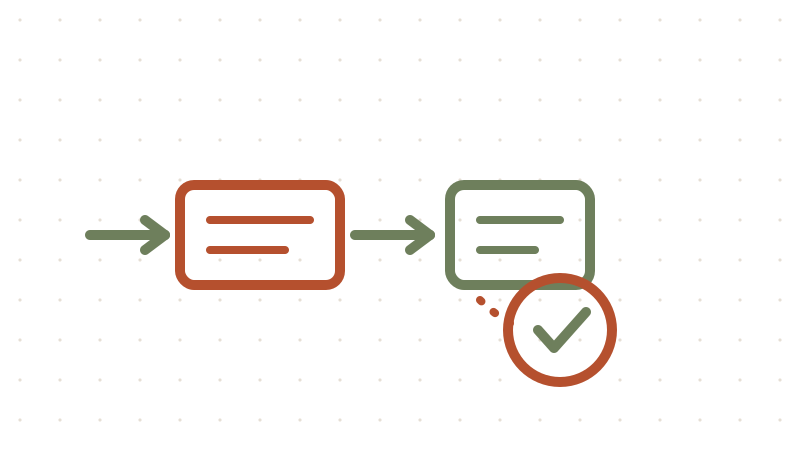
I run Nginx Proxy Manager (NPM) as the front door for most of my self-hosted services, and I want a single login gate in front of all of them. That's what Authelia gives me: an authentication middleware that sits between the internet and things like Sonarr, Portainer, or Nextcloud. Before anyone reaches a protected app, they have to pass Authelia first.
I wrote earlier about setting up Authelia itself — generating secrets, the users database, configuration.yml. This post is the other half: the NPM side. How to mount a small folder of reusable nginx "snippets" into NPM, and how to protect any proxy host by pasting one short block into its Advanced tab. Once the snippets are in place, protecting a new service takes about two minutes.
1. The big picture
The flow for every protected request looks like this:
Browser → NPM → Authelia (is this user logged in?)
                    │
                    ├─ yes → NPM → your service
                    └─ no  → redirect to the Authelia login portal
NPM normally builds its proxy config for you from form fields, but it also has an Advanced tab per host where you can drop in raw nginx directives. That's where Authelia's checks live. Because the same directives are identical for every host, we keep them in four small .conf files on the host and include them — that's the snippets approach. It keeps the Advanced tab short and means one edit fixes all hosts at once.
2. Create a snippets folder
Pick the folder where your NPM compose file lives and add a snippets directory next to data and letsencrypt:
/opt/docker/nginx-proxy-manager/   <-- root of your NPM setup
├── docker-compose.yml
├── data/
├── letsencrypt/
└── snippets/                      <-- NEW: create this folder
    ├── authelia-location.conf
    ├── authelia-authrequest.conf
    ├── proxy.conf
    └── websocket.conf
mkdir -p /opt/docker/nginx-proxy-manager/snippets
Use whatever path fits your setup — the name snippets is the only part that matters, because we'll mount it to /snippets inside the container.
3. Mount the folder and share a Docker network
Edit NPM's docker-compose.yml so it gets the snippets volume and joins a network that Authelia can also reach. If your Authelia container is already on a shared network (I call mine npm_network), just attach NPM to it:
services:
  app:
    image: 'jc21/nginx-proxy-manager:latest'
    container_name: nginx-proxy-manager
    restart: unless-stopped
    ports:
      - '80:80'
      - '443:443'
      - '81:81'
    volumes:
      - ./data:/data
      - ./letsencrypt:/etc/letsencrypt
      # REQUIRED: maps host snippets into the container
      - ./snippets:/snippets
    networks:
      - npm_network

networks:
  npm_network:
    external: true
Two things to check:
- The
npm_networkmust already exist, and your Authelia compose file must attach to the same network (networks: npm_network: external: trueon both sides). - After changing the compose file, recreate the container:
docker compose up -d.
4. The four snippet files
Create these files inside ./snippets/.
authelia-location.conf
This defines an internal location that forwards auth checks to Authelia's API. Adjust http://authelia:9091 if your Authelia container has a different name or port — the hostname must match the container name on the shared network.
set $upstream_authelia http://authelia:9091/api/authz/auth-request;

location /internal/authelia/authz {
    internal;
    proxy_pass $upstream_authelia;
    proxy_pass_request_body off;
    proxy_set_header Content-Length "";
    proxy_set_header X-Original-URL $scheme://$http_host$request_uri;
    proxy_set_header X-Original-Method $request_method;
    proxy_set_header X-Forwarded-Method $request_method;
    proxy_set_header X-Forwarded-Proto $scheme;
    proxy_set_header X-Forwarded-Host $http_host;
    proxy_set_header X-Forwarded-Uri $request_uri;
    proxy_set_header X-Forwarded-For $remote_addr;
    proxy_set_header Connection "";
}
The internal; directive means this location can't be reached directly from the browser — only nginx itself calls it via auth_request.
authelia-authrequest.conf
This is the actual gate: it runs the auth check and passes the authenticated user's details (name, groups, email) along to the backend service. The last two lines are Authelia's modern redirect: when the auth check returns 401, nginx follows the Location header Authelia sends (its login portal) instead of a hard-coded URL, so the redirect always matches your configured Authelia domain.
auth_request /internal/authelia/authz;
auth_request_set $user $upstream_http_remote_user;
auth_request_set $groups $upstream_http_remote_groups;
auth_request_set $name $upstream_http_remote_name;
auth_request_set $email $upstream_http_remote_email;
proxy_set_header Remote-User $user;
proxy_set_header Remote-Groups $groups;
proxy_set_header Remote-Name $name;
proxy_set_header Remote-Email $email;
auth_request_set $redirection_url $upstream_http_location;
error_page 401 =302 $redirection_url;
proxy.conf
Here's the gotcha that cost me a confusing evening: anything you put in NPM's Advanced tab replaces the default proxy headers NPM would normally set. If you only paste the Authelia includes, your backend suddenly sees the wrong Host header and wrong client IP. This snippet restores the standard ones:
proxy_set_header Host $host;
proxy_set_header X-Forwarded-Scheme $scheme;
proxy_set_header X-Forwarded-Proto  $scheme;
proxy_set_header X-Forwarded-For    $remote_addr;
proxy_set_header X-Real-IP          $remote_addr;
websocket.conf
Websockets need HTTP/1.1 and explicit upgrade headers. Without this, apps like Home Assistant, Portainer, or anything with live notifications keep disconnecting:
proxy_http_version 1.1;
proxy_set_header Upgrade $http_upgrade;
proxy_set_header Connection "upgrade";
5. Protect a host in the NPM UI
Now the payoff. To protect a service (Nextcloud, Sonarr, Portainer — anything):
- Log in to the NPM web UI.
- Edit the Proxy Host you want to protect.
- Go to the Advanced tab.
- Paste this block:
# 1. Define the Authelia endpoint location
include /snippets/authelia-location.conf;

location / {
    # 2. Enforce authentication
    include /snippets/authelia-authrequest.conf;

    # 3. Restore standard proxy headers
    include /snippets/proxy.conf;

    # 4. Enable websockets (optional but recommended)
    include /snippets/websocket.conf;

    # 5. Destination service
    # CHANGE THIS to the actual IP:PORT of your service
    proxy_pass http://192.168.1.x:PORT;
}
- Click Save.
One critical detail: NPM does not automatically forward to whatever you typed in the host form once you define your own location / block — you must repeat the destination yourself in the proxy_pass line, using the real internal IP and port of your service (e.g. http://192.168.1.10:8989 for Sonarr).
Repeat the paste for each host you want behind the login wall. Hosts without the block stay unprotected, and the Authelia login portal host itself must be left unprotected (nothing in its Advanced tab), or you'll get a redirect loop.
6. Troubleshooting
- 500 Internal Server Error — nginx can't reach the Authelia container. Check
authelia-location.conf: is the container name correct (authelia), and are both containers on the same Docker network?docker network inspect npm_networkshows who's attached. - Login loop — Authelia keeps bouncing you back to the login page. Check that
configuration.ymlhas the correctdomainset and the cookie settings match your setup (secure: trueonly works behind HTTPS). - Websockets failing — Home Assistant or Portainer disconnects constantly? Make sure
include /snippets/websocket.conf;is present in that host's Advanced tab.
Checklist
Before you call it done, verify:
- [ ]
docker network inspect npm_networkshows bothnginx-proxy-managerandautheliaattached - [ ] All four snippet files exist inside the container (
docker exec nginx-proxy-manager ls /snippets) - [ ] A protected host redirects to the Authelia login when not signed in, and lands back on the app after login
- [ ] The protected app still works normally: correct client IPs in its logs, websockets stay connected
- [ ] The Authelia portal host itself has an empty Advanced tab